Business Service Request Guide
Last updated: May 06, 2026
514
views

TELUS Business Support Requests Guide
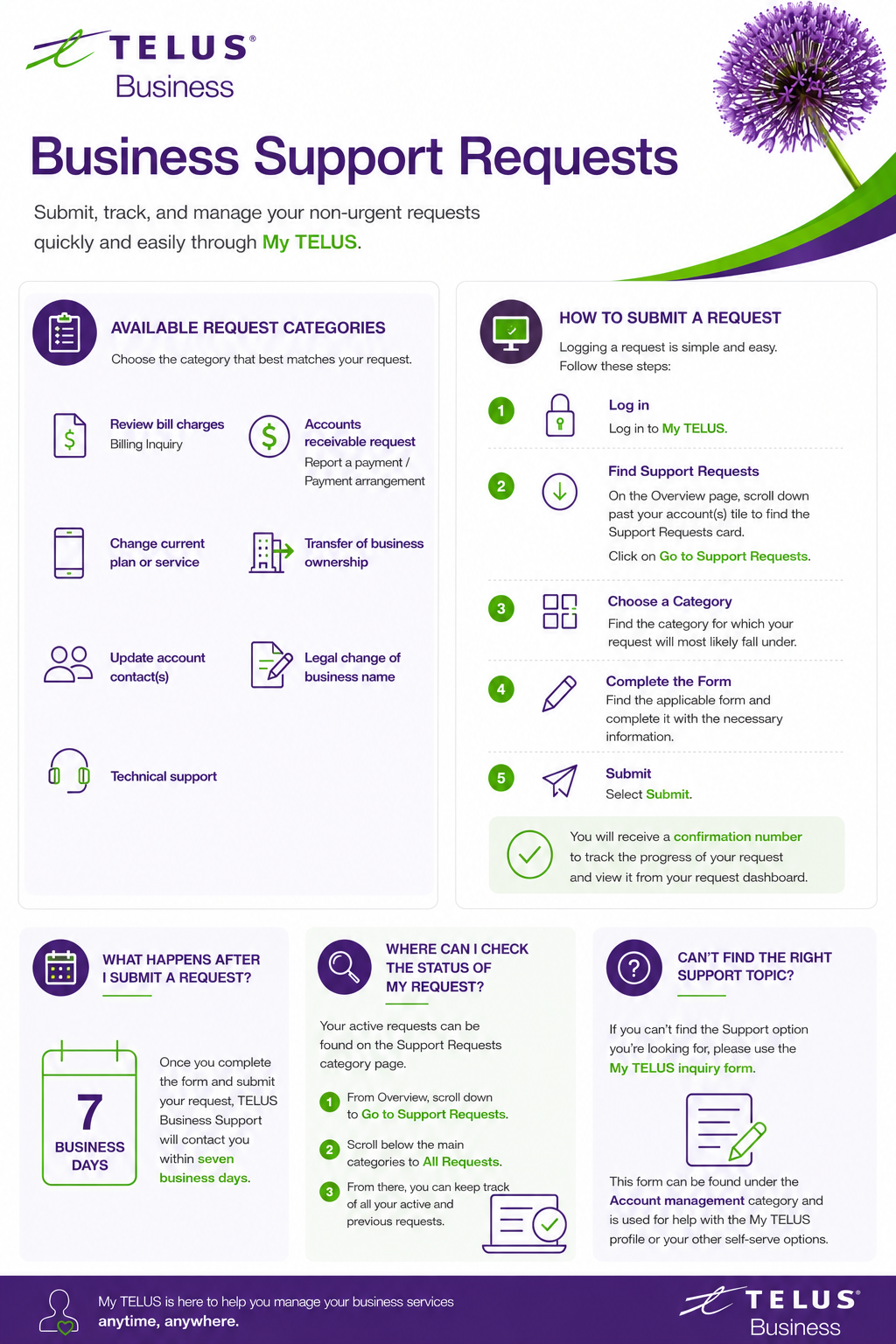
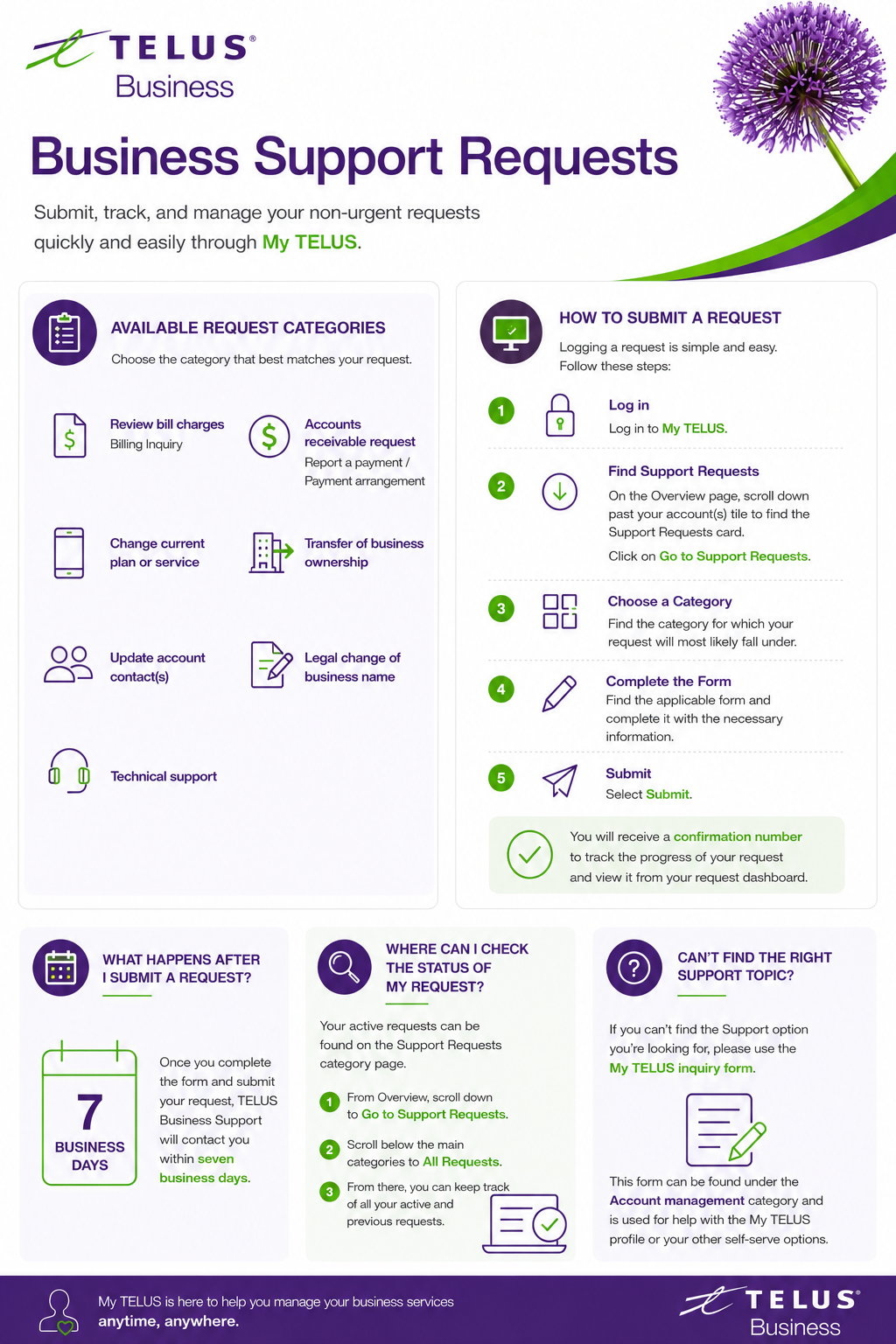
Available Request Categories
When submitting a support request through My TELUS, choose the category that best matches your request:
- Review bill charges → Billing Inquiry
- Change current plan or service
- Add new product or services
- Update account contact(s)
- Accounts receivable request → Report a payment / Payment arrangement
- Transfer of business ownership
- Legal change of business name
- Technical support
How to Submit a Request
Follow these simple steps:
Step 1 — Log in
Log in to My TELUS Account.
Step 2 — Find Support Requests
On the Overview page:
- Scroll down past your account information
- Locate the Support Requests card
- Select Go to Support Requests
Step 3 — Choose a Category
Select the category that best matches your request type.
Step 4 — Complete the Form
Fill out the required information on the request form.
Step 5 — Submit
Click Submit.
After submitting:
- You will receive a confirmation number
- This number can be used to track your request status
What Happens After Submission?
Once your request is submitted:
- TELUS Business Support will contact you within 7 business days
- Updates can be tracked through your request dashboard
How to Check Request Status
To view active or previous requests:
- Go to the Overview page
- Select Go to Support Requests
- Scroll down to All Requests
From there, you can:
- View active requests
- Track progress
- Review previous submissions
Can’t Find the Right Support Topic?
If the request you need is not listed:
- Use the My TELUS inquiry form.
- This form is located under the Account Management category
Use this option for:
- My TELUS profile assistance
- Self-serve support issues
- Other account management inquiries