


 31
31
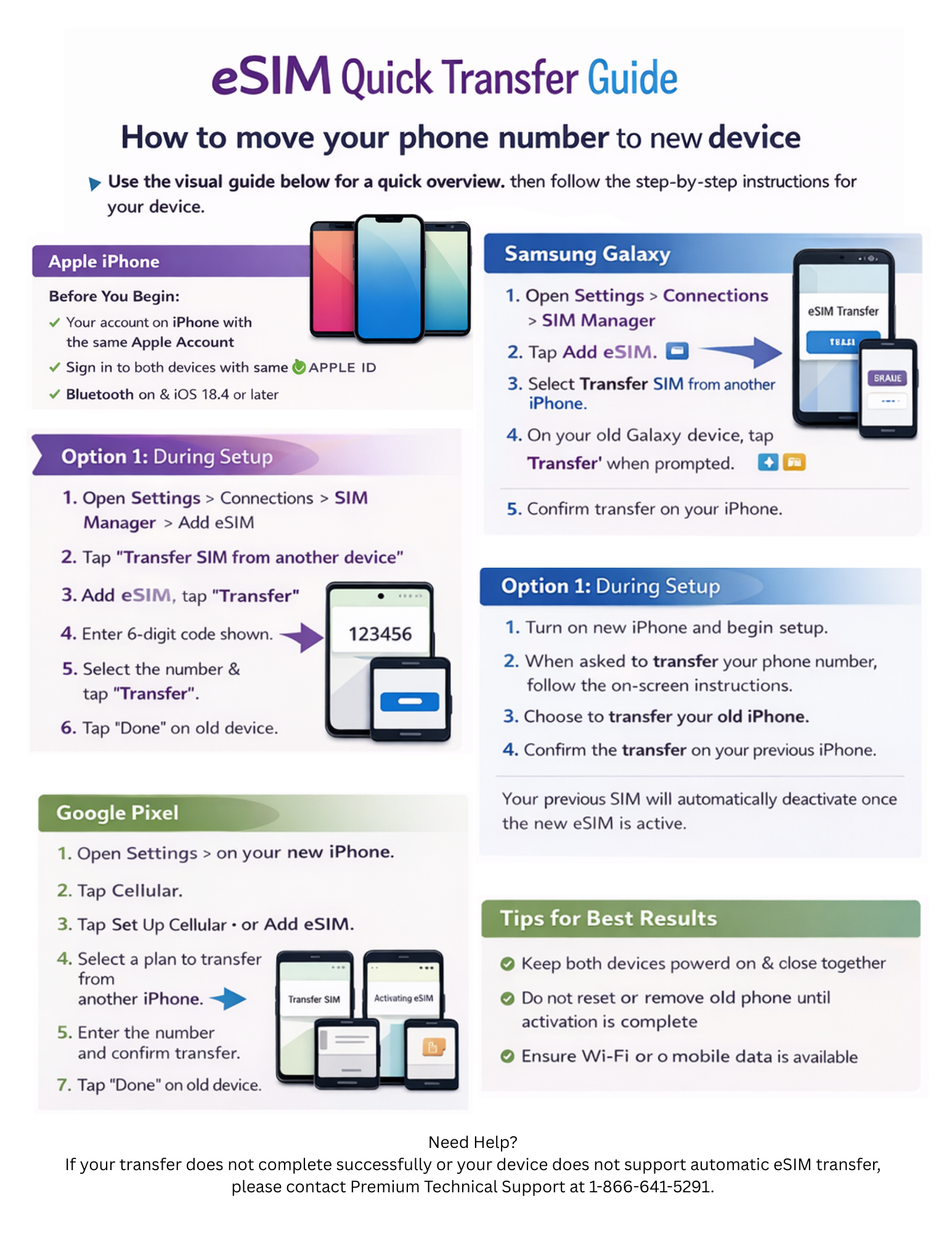
How to Transfer Your Phone Number Using eSIM
This guide explains how to move your phone number from your old phone to a new one using eSIM. Follow the steps based on the type of device you are setting up.
Apple iPhone: eSIM Quick Transfer
If your carrier supports eSIM Quick Transfer, you can move your phone number from one iPhone to another without contacting your carrier.
Before You Begin
Make sure:
-
You are signed in to both iPhones with the same Apple Account
-
Your previous iPhone is unlocked with the device passcode
-
Both iPhones are nearby with Bluetooth turned on
-
Both devices are running iOS 18.4 or later
Transfer During iPhone Setup
-
Turn on your new iPhone and begin setup.
-
When prompted to transfer your phone number, follow the on-screen instructions.
-
Choose whether to transfer a physical SIM or eSIM.
-
Confirm the transfer on your previous iPhone.
Note: With iOS 26, you can transfer more than one phone number. Your old SIM will automatically deactivate once the new eSIM is active.
Transfer After Setup
-
Open Settings on your new iPhone.
-
Tap Cellular.
-
Tap Set Up Cellular or Add eSIM.
-
Select a plan to transfer from another iPhone.
-
If no numbers appear, tap Transfer From Nearby iPhone.
-
-
Follow the instructions on your previous iPhone and confirm the transfer.
-
Wait for activation to complete.
If you see a message that says “Finish Setting Up Your Carrier’s Cellular Plan”, tap it and follow the instructions on your carrier’s website.
Samsung Galaxy: eSIM Instant Transfer
Samsung Galaxy devices let you transfer your eSIM from your old Galaxy phone to a new one without contacting your carrier.
Important
-
Your new Samsung Galaxy device must be unlocked for the transfer to work.
Steps to Transfer
-
On your new Galaxy device, go to
Settings > Connections > SIM Manager > Add eSIM -
Tap Transfer SIM from another device.
-
On your old Galaxy device, tap Transfer when prompted.
-
Enter the 6-digit verification code shown on your new device.
-
Select the phone number you want to move and tap Transfer.
-
Confirm the transfer on your old device and tap Done.
Your eSIM will automatically download and activate on your new Galaxy phone.
Google Pixel: SIM or eSIM Transfer
You can transfer a physical SIM or an eSIM to your new Google phone either during setup or after.
Transfer During Setup
-
Keep both devices nearby.
-
Complete the setup process on your new phone.
-
Choose the SIM you want to transfer.
-
Tap Transfer and then Activate.
-
Wait for activation to finish.
Tip: If your phone already has another eSIM, make sure it is turned on to use dual SIMs.
Transfer After Setup
-
Open Settings.
-
Tap Network & Internet.
-
Tap SIMs.
-
Tap Add SIM.
-
Select Transfer SIM from another device.
-
Follow the on-screen instructions.
If your device does not detect an eSIM transfer, contact your carrier for assistance.
Need Help?
If your transfer does not complete successfully or your device does not support automatic eSIM transfer, please contact Premium Technical Support at 1-866-641-5291.

